Citizen Corner · Login Guide 2026
PPP Haryana Login – Family ID Citizen Corner Guide
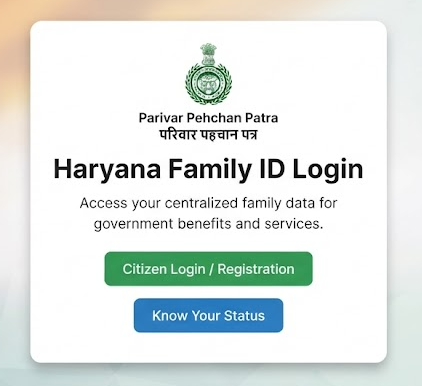
To use any Family ID service – checking details, updating information or downloading your card – you must first log in to the PPP Haryana Citizen Corner. Login uses your 8-digit Family ID and a one-time OTP sent to your registered mobile number.
🔐 OTP Secure Login ⏱️ 2 Minutes Process 💸 Free of Cost
Last updated: 30 September 2026 · Reviewed by the Haryana Family ID research team against official PPP sources.
What is the PPP Haryana Citizen Corner?
The Citizen Corner is the self-service section of the Parivar Pehchan Patra (PPP) portal run by the Government of Haryana. After logging in with your Parivar Pehchan Number (PPN), you can view your family record stored in the Citizen Resident Information Database (CRID), request corrections, and download your Family ID card – without visiting any office.
Login is secured with an OTP sent to the mobile number registered in your Family ID, which is why keeping that number active matters. There is no password to remember – every login generates a fresh one-time code.
How to Login to PPP Haryana – Step by Step
Keep your 8-digit Family ID and the mobile phone registered in your PPP record ready. The whole login takes about two minutes. Click any screenshot to enlarge it.
STEP 1
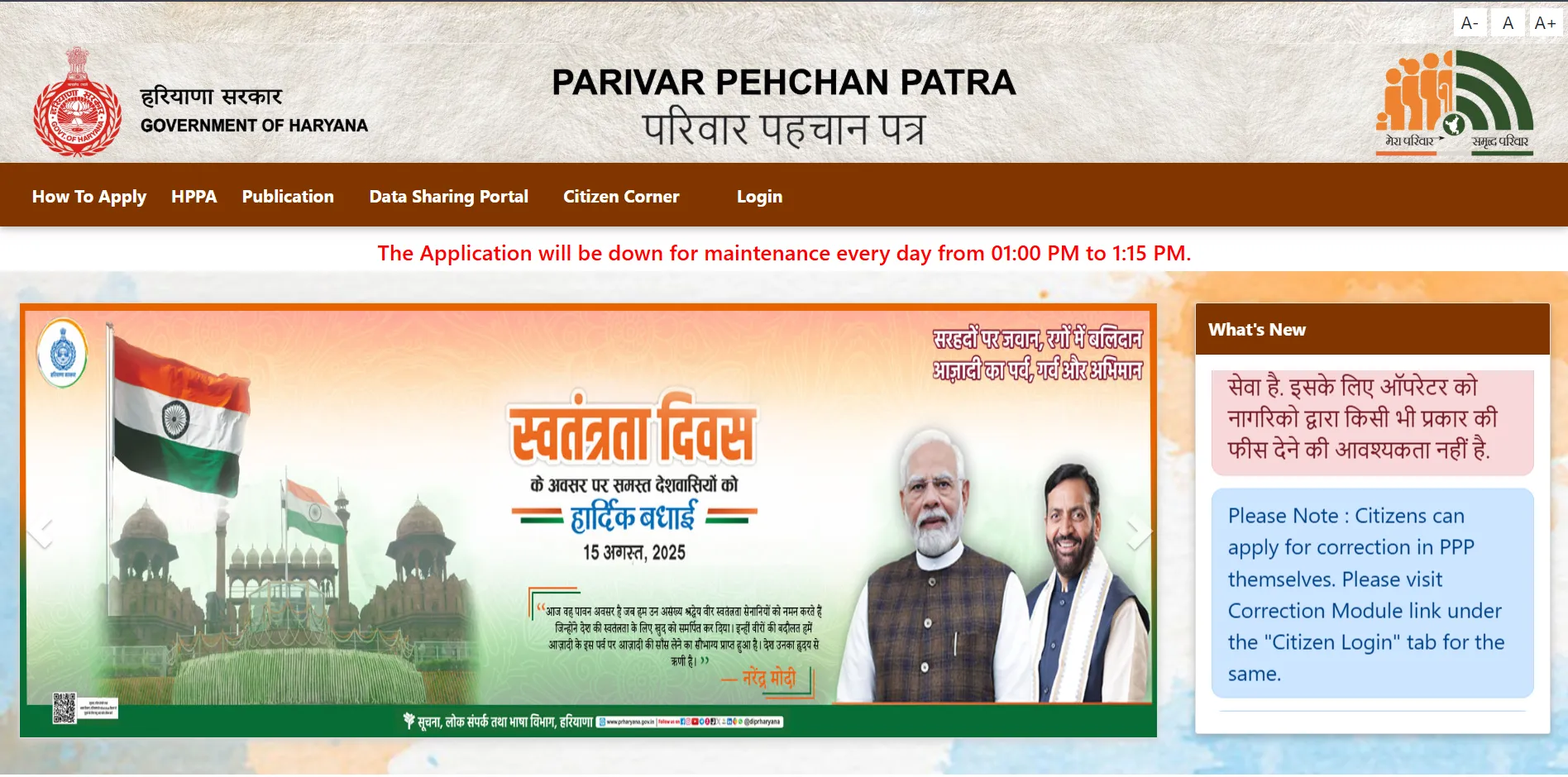
Open the Official PPP Portal
Go to the Citizen Corner at ppp-office.haryana.gov.in. Always check the address ends in haryana.gov.in – several lookalike sites copy the design of the official portal.
🔗 https://ppp-office.haryana.gov.in/
STEP 2
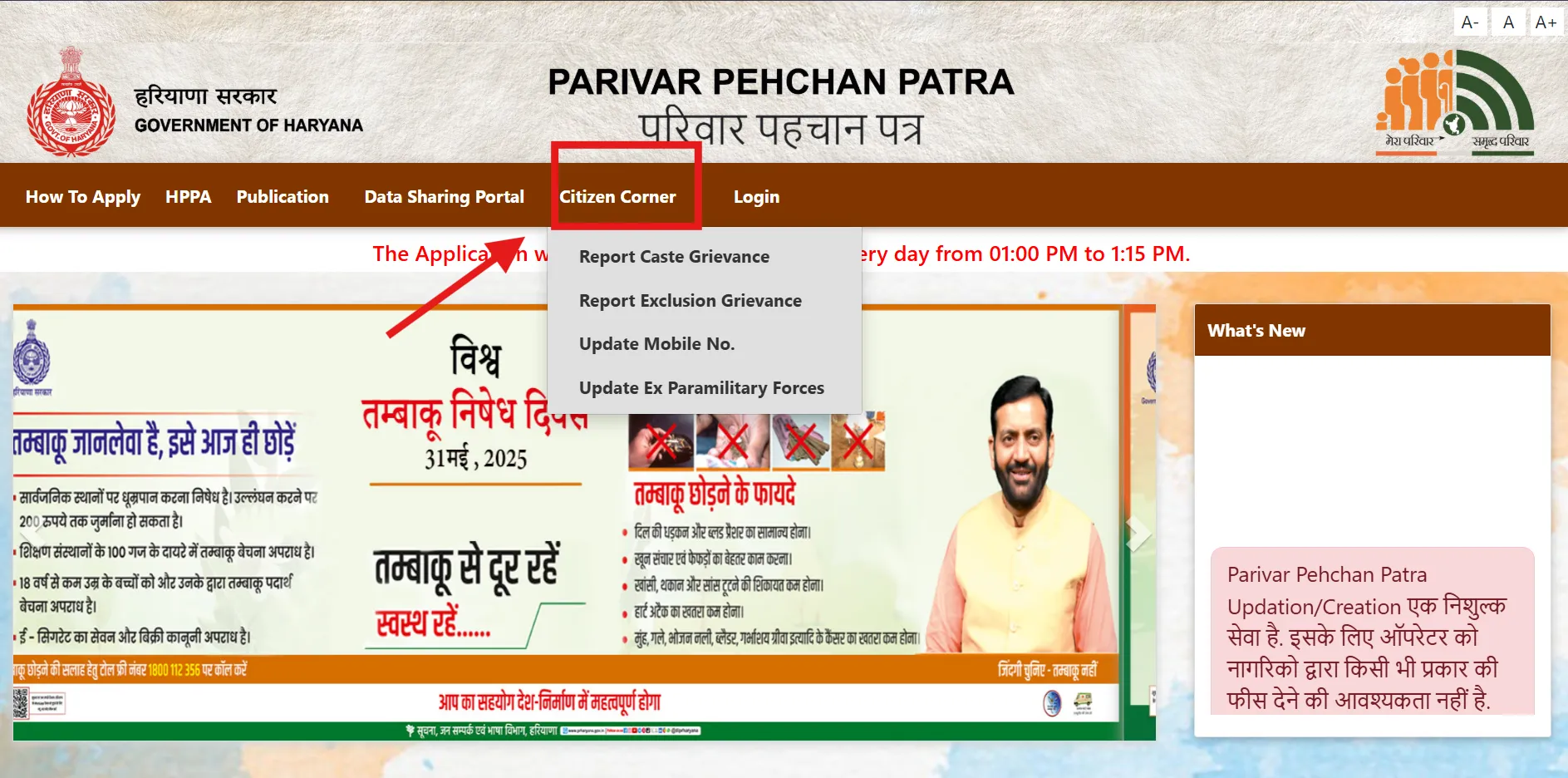
Click Citizen Login
On the homepage, click the Citizen Login button. This opens the login screen where you choose how to identify your family.
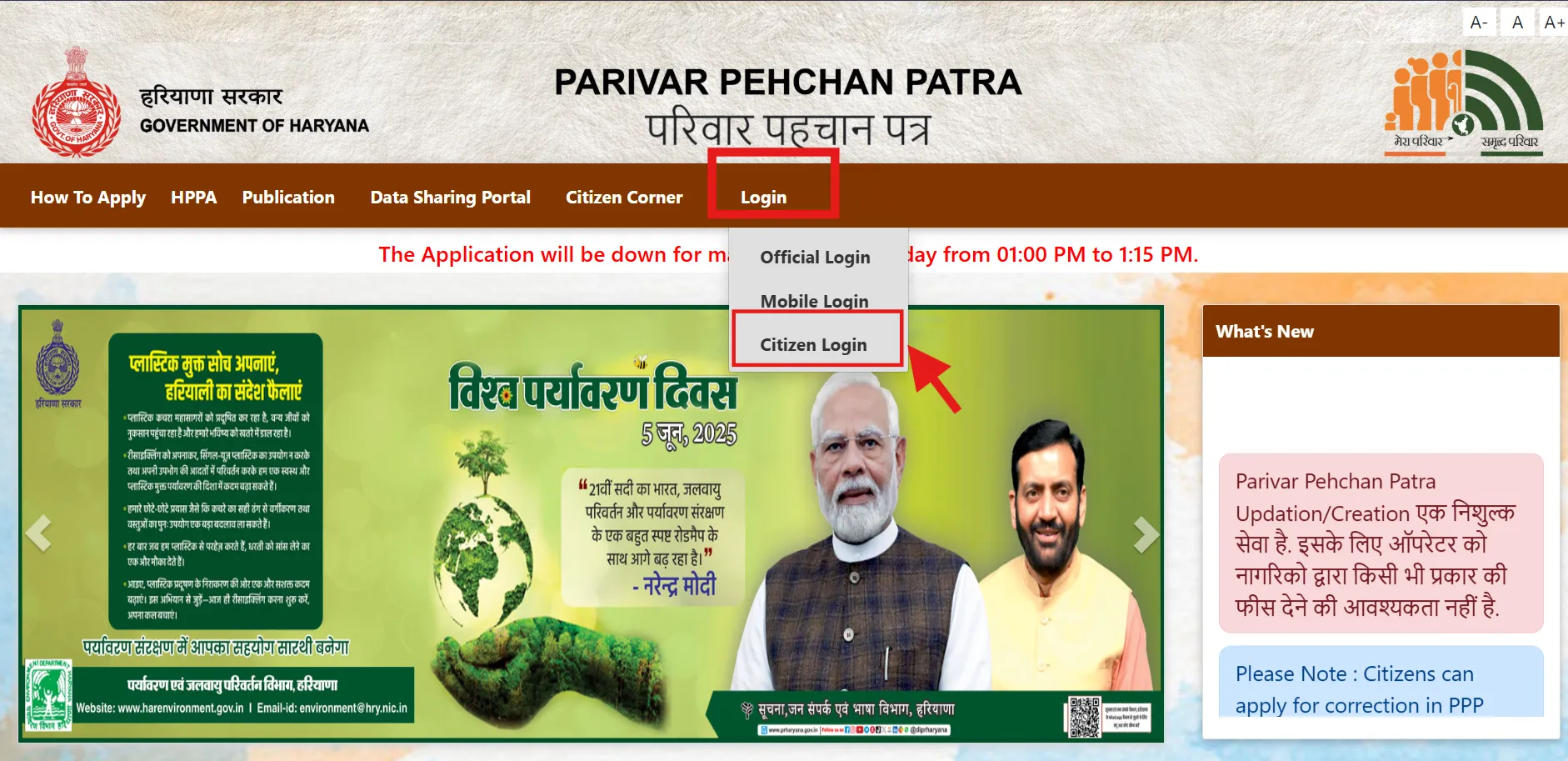
STEP 3
Select “Yes” and Enter Your Family ID
When asked “Do you have a Family ID?”, choose Yes, then type your 8-digit Parivar Pehchan Number. Forgotten it? Recover it first using our Search Family ID guide.
STEP 4
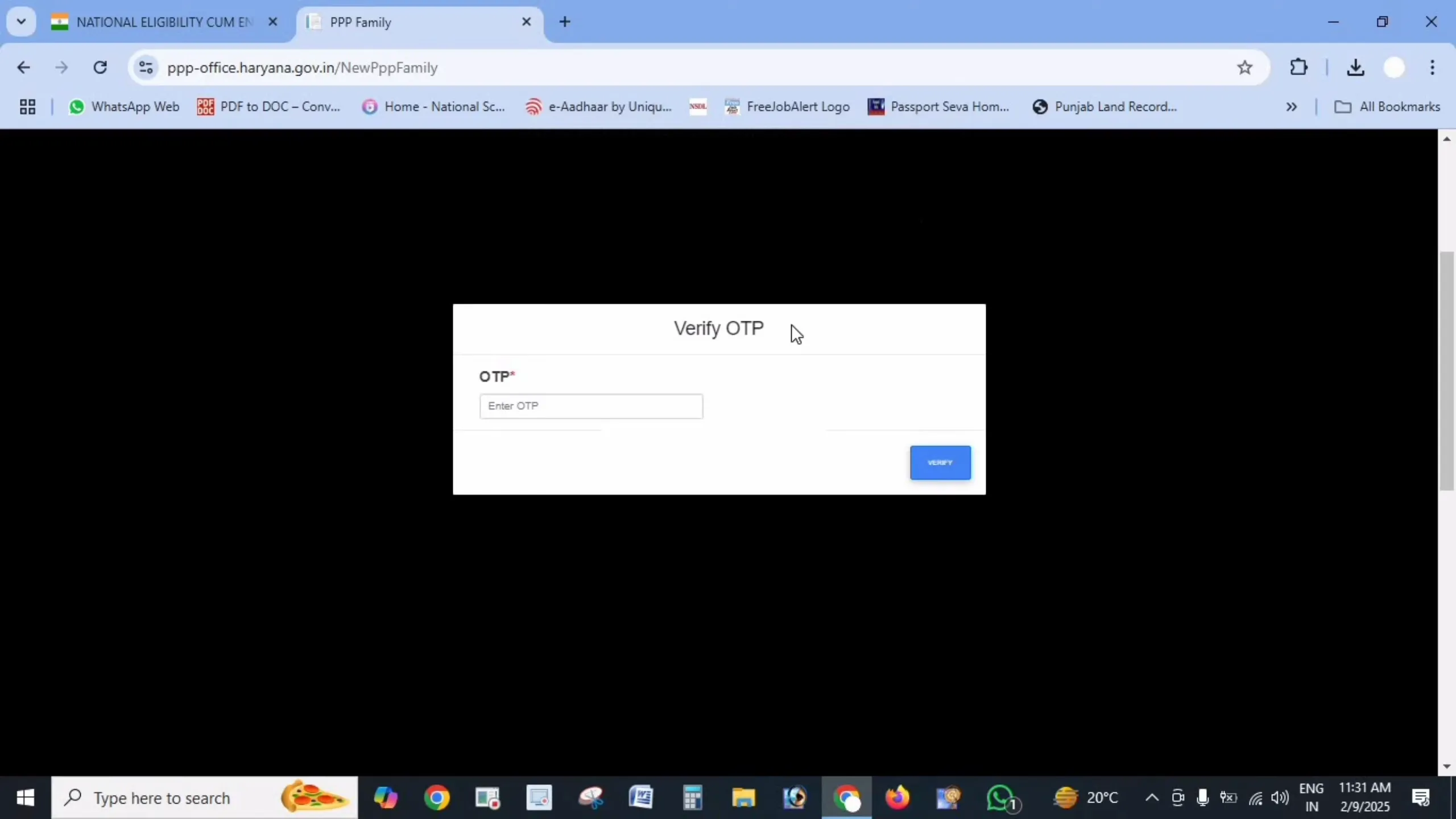
Verify the OTP
An OTP is sent to the mobile number registered in your Family ID. If more than one member has a number linked, pick the correct one, then enter the code to verify.
STEP 5
Access Your Family Dashboard
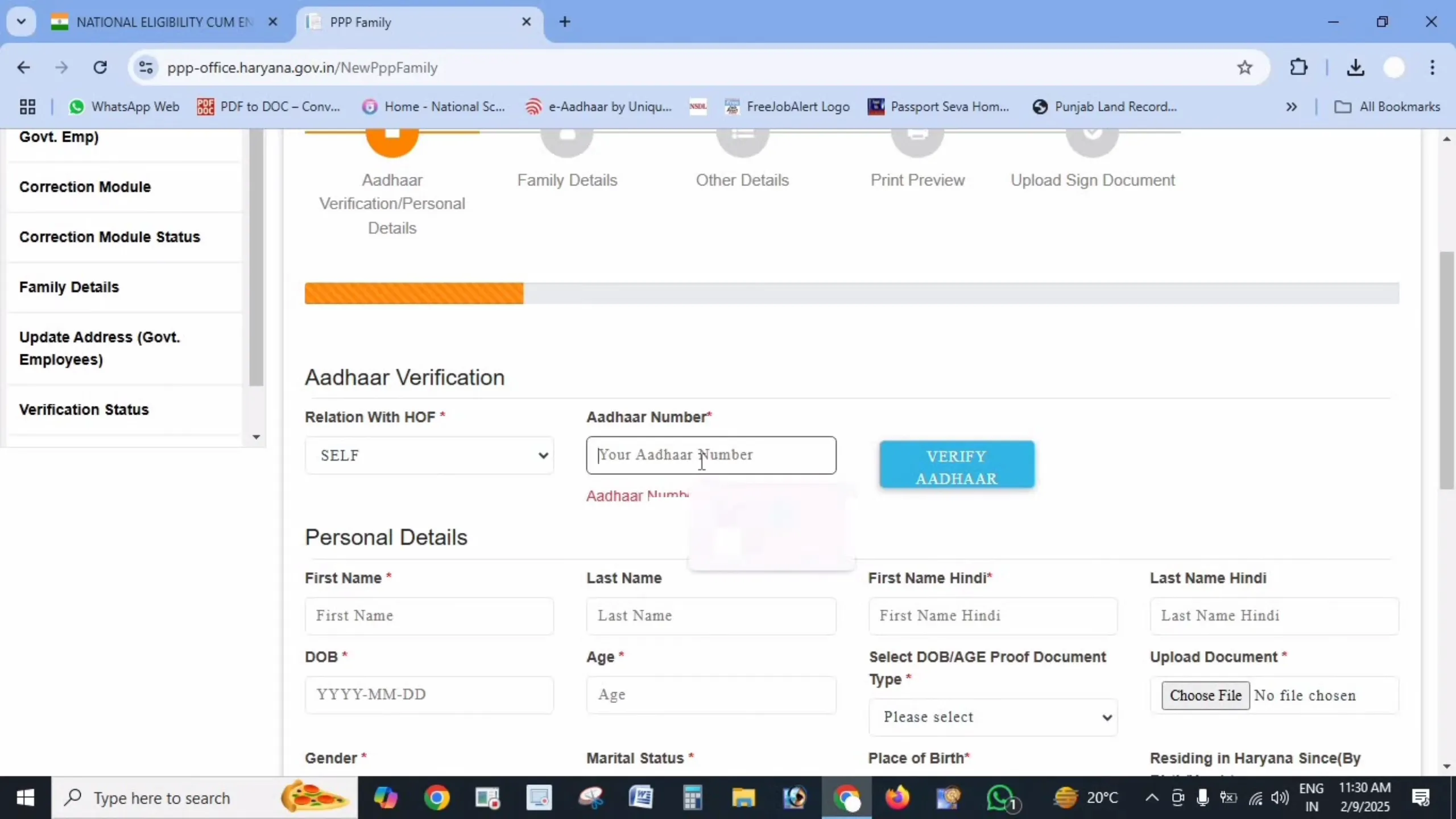
Once verified, your family dashboard opens. From here you can view every member’s details, request corrections, and download your Parivar Pehchan Patra card.
What You Can Do After Logging In
Common PPP Login Problems and Fixes
OTP not received
The mobile number in your Family ID record may be inactive or different from the one you are checking. Confirm which number is registered, ensure it has network, and wait a minute before requesting a new OTP. If it still fails, update the number at an Antyodaya Saral Kendra or CSC.
“Family ID not found” error
Re-check every digit – a permanent ID has 8 digits, a temporary one has 9 and begins with “T”. If the number is right and still fails, recover it through our Search Family ID method using Aadhaar.
Portal not loading or session expired
The PPP portal sees heavy traffic in working hours. Try early morning or late evening, clear your browser cache, or switch browsers. Sessions time out after a few idle minutes – simply log in again.
Wrong mobile number registered
If the registered number belongs to someone no longer in the household, you cannot receive the OTP. Visit a Saral Kendra with the family head’s Aadhaar to update the contact number in the PPP record.
Safe Login Tips
Frequently Asked Questions
Disclaimer: This is a private informational website created to help citizens understand the Parivar Pehchan Patra scheme. We are not affiliated with the Government of Haryana. Always log in and avail services only through the official portals meraparivar.haryana.gov.in and ppp-office.haryana.gov.in.